Add friends on LINE OA with a QR code and link
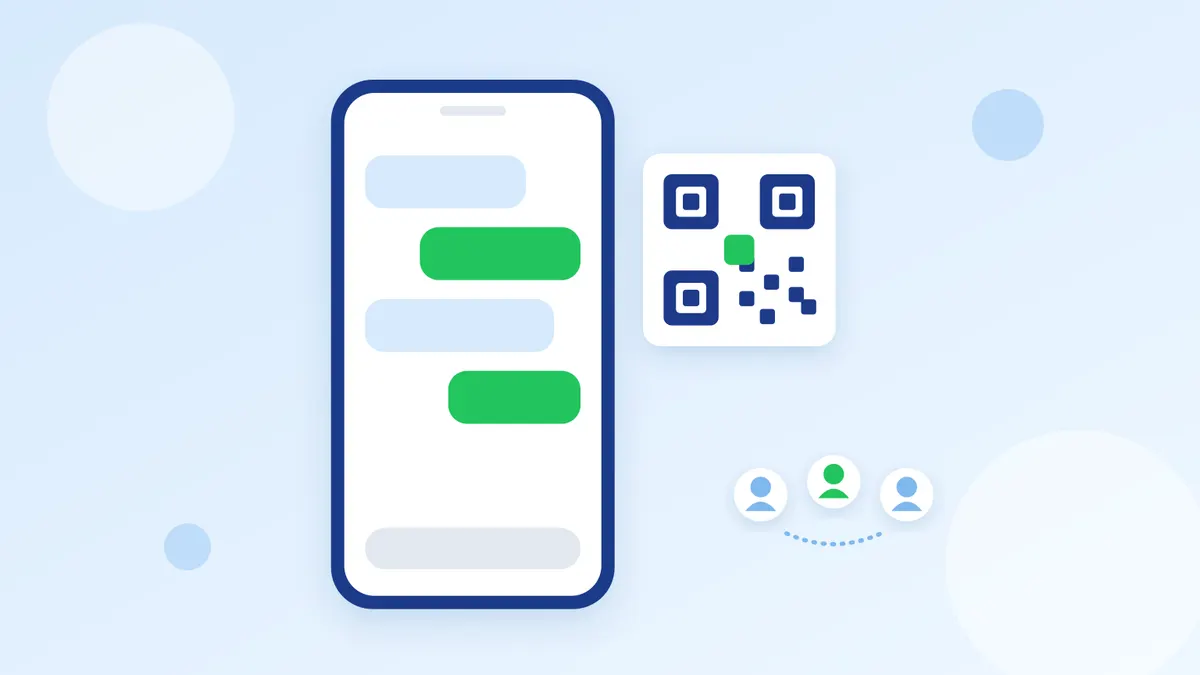
Customers add a LINE OA in four main ways: scan its QR code, tap a link, tap an add friend button on a website, or search for its ID. On the shop side, the QR code and link are under Home, both in the LINE Official Account app and in LINE Official Account Manager on a computer. New to LINE OA? Start with What is a LINE OA and what can shop owners do with it
The menu names here come from LINE's manuals. Some pages name them differently and LINE is rolling out menu changes in its app, so your screen may differ slightly.
How to add a LINE OA as a friend
Customers can use whichever is easiest.
Scan the QR code
- Open LINE, tap the Chats tab and choose the QR code scanner at the top of the screen.
- Scan the shop's QR code and tap Add friend.
LINE for PC cannot scan QR codes, so this needs a phone.
Tap the link or the add friend button
The customer sees the shop's profile page. If they are already friends, the chat opens instead. On a computer they see a QR code or the shop's public profile, depending on the account's settings.
- Source: LINE Developers, LINE URL scheme
Search by ID
- In LINE, tap the Chats tab, then Add friends at the top of the screen.
- Choose Search, then ID.
- Type the shop's ID, which starts with @, and tap Add.
A verified account can also be found by name in the official account search. An unverified account does not appear in search results inside the LINE app.
- Source: LINE Help Center, official accounts (Thai)
- Source: LINE Official Account Help Center, account types (Thai)
Where to find your LINE OA QR code
In the LINE Official Account app
- Tap the Home icon, then Gain friends.
- Tap QR code to see your shop's code.
- Tap Save QR code.
On a computer (LINE Official Account Manager)
- Click Home, then Gain friends.
- Check the QR code shown.
- Click Download to save the image file, or Copy to copy its HTML tag.
Some LINE manuals call this route "Add friend" tools, so look for that name if you cannot find the first one.
- Source: LINE Official Account Help Center, QR code and add friend button
- Source: LINE for Business Help Center, LINE OA (Thai)
Create and share your LINE OA QR code
Every account already has a QR code, so there is nothing to generate. Download it and put it where customers will see it.
- In the shop: print it for the door, the till or inside your parcels.
- Poster: LINE Official Account Manager can make a poster under Home, then Gain friends. Pick a design and message, then save the PDF. This works on the website only, and unverified accounts cannot make posters.
- Website or email: use the add friend button, copying its HTML from the same page.
- Social media or chat: a link is easier, because a customer already on their phone can tap it.
- Coupons: a coupon QR code gives the customer the coupon and adds your account together, but it only works during the coupon's valid period, so it does not suit a long-term sign.
Posters with LINE FRIENDS characters are LINE's copyright and must not be modified. After printing a sign, always test the scan with your own phone before putting it up.
- Source: LINE Official Account Help Center, creating a poster
- Source: LINE for Business Help Center, LINE OA (Thai)
Your LINE OA add friend link
- On a computer: under Home, go to "Add friend" tools and create the link, then copy it.
- In the app: copy the link from the Gain friends menu.
To build the link yourself, LINE's format is https://line.me/R/ti/p/ followed by your ID with the @ written as %40. For the ID @linedevelopers, that gives https://line.me/R/ti/p/%40linedevelopers.
The link and QR code from LINE's tools do not change if you move to a Premium ID, so printed signs keep working. If you cancel a Premium ID, your followers stay and only the ID goes back to the Basic ID.
To see where friends come from, set up separate add friend routes, for example one for the shop sign and one for a post. Results appear in Insight under Friends. A route with fewer than 20 adds in the chosen period shows no data.
- Source: LINE for Business Help Center, LINE OA (Thai)
- Source: LINE Developers, sharing your LINE Official Account
- Source: LINE for Business, Premium ID (Thai)
When a customer cannot add your LINE OA
LINE's help covers this for adding friends in general, not LINE OA alone, so use it as a guide.
- An unknown error message: the customer's account may be temporarily limited. Wait 1 to 2 days and try again.
- ID search fails: they may have searched or mistyped an ID too many times. Send the QR code or link instead, and check that the ID starts with @.
- Shop name not found: unverified accounts do not appear in search. Send the QR code or link, or apply for verification.
- A friend limit message: LINE allows up to 5,000 friends, so the customer can try removing accounts they no longer use. The Thai manual does not say whether a LINE OA counts toward this number.
- A user not found message when scanning: the manual says to update the QR code. Download it again from the menu and send it over.
- Link opened on a computer: scan the QR code shown on screen with a phone.
If the customer blocked your shop
You cannot unblock on their behalf. They do it in the LINE app.
- Tap the Home tab, then Settings.
- Choose Friends, then Blocked users.
- Choose your shop and tap Unblock.
If they already removed your shop from that list, they need to add it again.
- Source: LINE Help Center, cannot add friends (Thai)
- Source: LINE Help Center, unblocking (Thai)
- Source: LINE Help Center, friend limit (Thai)
LINE OA friend ads
If you have a budget and want friends sooner, LINE has its own friend ads. Customers see the ad on LINE and can add you from it.
- Verified accounts only, and some business types may not qualify.
- Start on the LINE Official Account Manager website only, under Home, Gain friends, then the friend ads menu.
- You pay only when someone adds you as a friend. Pricing is by bidding, with a maximum of 10 to 100 baht per friend.
- The total budget starts at 1,000 baht and the daily budget is 200 to 10,000 baht. LINE's manual pages disagree on the upper limit (20,000 and 30,000 baht), so check the screen when you set it up.
- LINE bills around the 10th of the following month.
- Source: LINE Official Account Help Center, friend ads (Thai)
- Source: LINE Official Account Help Center, ad budgets (Thai)
- Source: LINE Official Account Help Center, budget limits (Thai)
- Source: LINE Official Account Help Center, ad billing (Thai)
- Source: LINE for Business, Gain Friends Ads (Thai)
Should you pay a service to add friends?
We do not recommend it, for these reasons.
- Bought friends may be fake accounts or people with no interest in your products, and you have no way to check. The number goes up, but sales need not follow.
- LINE counts broadcast messages by Target Reach. If these friends can still receive messages, you use up your message quota on people who are not customers.
- LINE's guidelines do not allow promoting services that buy and sell accounts or followers through LINE.
- LINE's terms forbid bots and cheat tools, and adding other users indiscriminately. You do not know how a seller gets its numbers, yet if a problem arises the account at risk is yours, because LINE can suspend or end service for an account that breaks its terms.
To be straightforward: we found no sentence in LINE's documents that plainly forbids a shop from buying friends for its own account, and LINE states no penalty for it. If you want friends sooner, LINE's own friend ads give you a clearer view of what you spend.
- Source: LINE Official Account Guidelines
- Source: LINE Terms of Use
- Source: LINE Official Account Terms of Use (Thai)
Where to see your friend count
Go to Insight. The numbers can lag by up to 3 days.
- Friends: everyone who has added you, including those who later blocked you.
- Target Reach: friends who can still receive broadcasts. It is what message counts are based on.
- Blocked: friends who have blocked your account.
- Source: LINE for Business, LINE OA tips manual (Thai)
What to do once a customer adds you
- Greet them straight away so they know what to do next. See New-customer greeting message examples for LINE
- Set up a menu that answers in one tap. See A LINE OA rich menu that answers customers in one tap
- Keep up with replies. With several accounts or several people replying, the Easyrobin LINE OA inbox lets your team answer from one place.
FAQ
Where do I find my LINE OA QR code?
In the LINE Official Account app, tap Home, then Gain friends. On a computer, click Home, then Gain friends in LINE Official Account Manager.
Do I need to reprint my QR code after changing my ID?
No. The link and QR code you made do not change if you move to a Premium ID.
Can a customer add a LINE OA on a computer?
Yes, by searching for the ID in LINE for PC. Scanning a QR code and browsing the official account search do not work there.
Can I message a customer who blocked me?
No, not until they unblock you themselves.
Summary
Open Home, then Gain friends, download your QR code for the shop and share your link online. If a customer cannot add you, try another route or have them unblock you. For faster growth, use LINE's own ads rather than buying friends. Friends who come from your shop and chats are more likely to be real customers.